
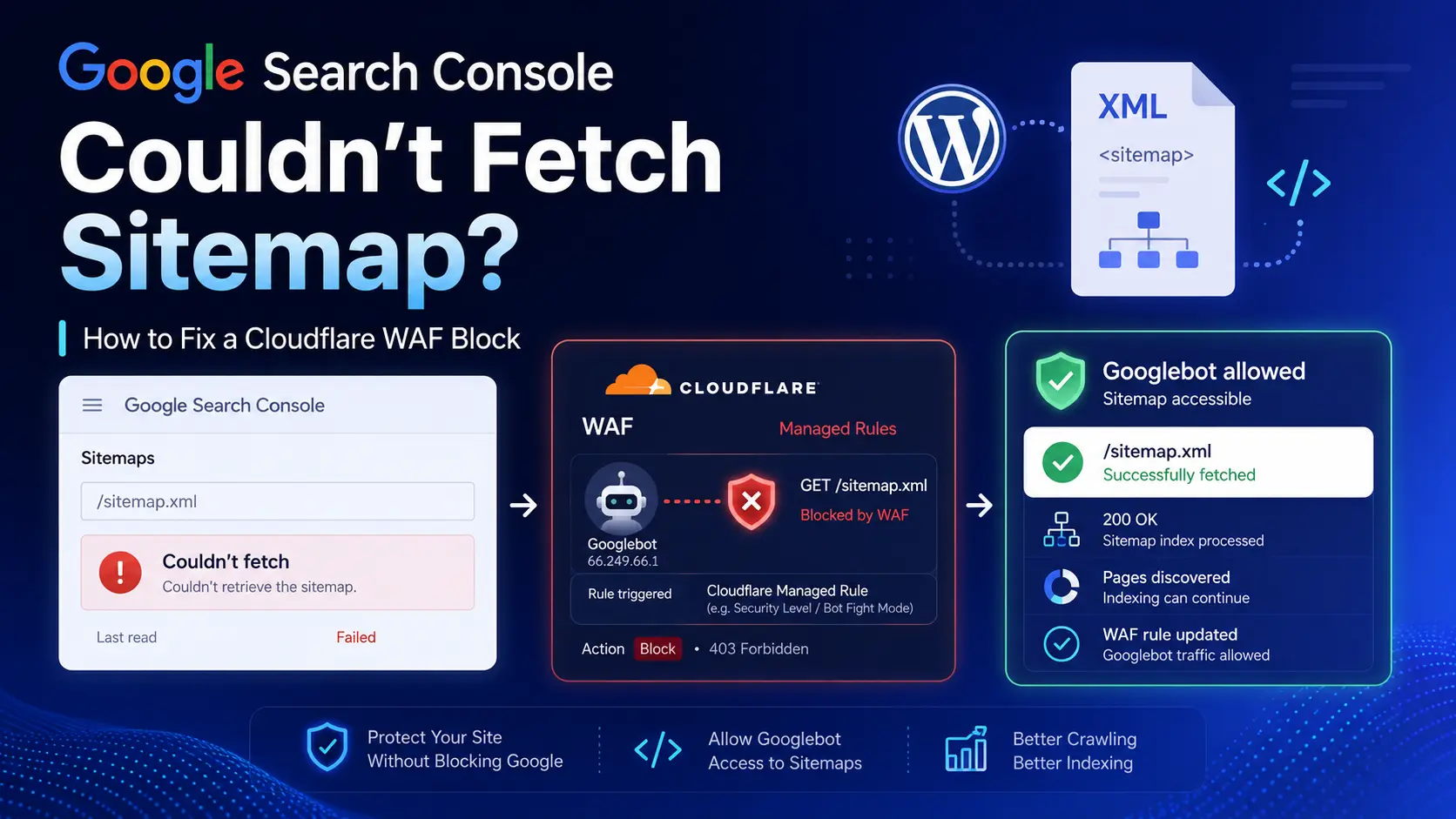
A sitemap can open normally in your browser, return HTTP 200, pass XML validation, and still show “Couldn’t fetch” in Google Search Console.
That is exactly what happened while troubleshooting Ebuhu.com.
At first, the sitemap itself looked like the obvious problem. Maybe the WordPress sitemap plugin was generating bad XML. Maybe robots.txt was blocking Google. Maybe one of the child sitemaps was broken.
After testing each part, none of those turned out to be the cause.
The real problem was Cloudflare. A Cloudflare Managed WAF rule was blocking a genuine Googlebot request to /sitemap.xml. Google Search Console therefore could not download the sitemap, even though the sitemap worked perfectly when opened manually.
This guide explains how we found the problem, how you can test your own WordPress sitemap, and how to fix a Cloudflare false positive without unnecessarily weakening your site’s security.
What Google Search Console Was Reporting
The sitemap submitted to Google Search Console was:
https://example.com/sitemap.xmlSearch Console showed a result similar to:
Type: Unknown
Status: Couldn't fetch
Discovered pages: 0
There are several possible reasons for this error. The sitemap may not exist, the server may return an error, the XML may be invalid, robots.txt may block access, or a firewall may stop Google before the request reaches WordPress.
The important point is that “Couldn’t fetch” does not automatically mean your sitemap file is broken.
Step 1: Check Whether the Sitemap Returns HTTP 200
Start with a basic HTTP test.
From Linux, macOS, WSL, or another system with curl, run:
curl -I https://example.com/sitemap.xmlA healthy response should look similar to:
HTTP/2 200
content-type: text/xml; charset=utf-8
This tells you that the sitemap URL exists and your server is responding successfully.
In our case, the sitemap returned HTTP 200, so the URL itself was not missing or broken.
Step 2: Check the Actual Sitemap Content
A successful header response is useful, but Google needs to download the actual XML file.
Run:
curl -sL https://example.com/sitemap.xml | head -30A sitemap index should contain XML similar to this:
<?xml version="1.0" encoding="UTF-8"?>

<sitemapindex xmlns="http://www.sitemaps.org/schemas/sitemap/0.9">
    <sitemap>
        <loc>https://example.com/post-sitemap.xml</loc>
    </sitemap>

    <sitemap>
        <loc>https://example.com/page-sitemap.xml</loc>
    </sitemap>
</sitemapindex>
Our main sitemap correctly contained several child sitemaps, including:
/sitemap-misc.xml/post-sitemap.xml/page-sitemap.xml
That confirmed the sitemap generator was producing real XML rather than an HTML error page, login screen, or Cloudflare challenge page.
Step 3: Test Every Child Sitemap
Checking only the main sitemap is not enough. A sitemap index can load successfully even when one of the child sitemap files fails.
You can test all important sitemap files in one command:
for url in \
sitemap.xml \
sitemap-misc.xml \
post-sitemap.xml \
page-sitemap.xml \
robots.txt
do
    echo "=== $url ==="

    curl -sS -L \
        -o /dev/null \
        -w 'HTTP: %{http_code} | Type: %{content_type} | Size: %{size_download}\n' \
        "https://example.com/$url"
done
A healthy result should look similar to:
=== sitemap.xml ===
HTTP: 200 | Type: text/xml; charset=utf-8 | Size: 1066

=== sitemap-misc.xml ===
HTTP: 200 | Type: text/xml; charset=utf-8 | Size: 1016

=== post-sitemap.xml ===
HTTP: 200 | Type: text/xml; charset=utf-8 | Size: 2806

=== page-sitemap.xml ===
HTTP: 200 | Type: text/xml; charset=utf-8 | Size: 865

=== robots.txt ===
HTTP: 200 | Type: text/plain | Size: 525
All of the sitemap files on our site returned HTTP 200 and contained data.
That made a broken child sitemap very unlikely.
Step 4: Validate the Sitemap XML
A file can return HTTP 200 and still contain invalid XML, so the next step is to validate it.
On Ubuntu, Debian, or Linux Mint, install xmllint if needed:
sudo apt install libxml2-utilsThen validate the sitemap files:
for url in \
sitemap.xml \
sitemap-misc.xml \
post-sitemap.xml \
page-sitemap.xml
do
    echo "=== $url ==="

    curl -fsSL "https://example.com/$url" | xmllint --noout - \
        && echo "VALID XML" \
        || echo "INVALID XML"
done
The result should look like:
=== sitemap.xml ===
VALID XML

=== sitemap-misc.xml ===
VALID XML

=== post-sitemap.xml ===
VALID XML

=== page-sitemap.xml ===
VALID XML
That was also our result.
At this stage, replacing the sitemap plugin would have been the wrong move. The plugin was generating valid sitemap files and serving them correctly.
Step 5: Check robots.txt
Next, inspect your robots.txt file:
curl -sS https://example.com/robots.txtA normal WordPress configuration might contain:
User-agent: *
Disallow: /wp-admin/
Allow: /wp-admin/admin-ajax.php

Sitemap: https://example.com/sitemap.xml
The main rule you do not want to see on a public website is:
User-agent: *
Disallow: /
That would tell normal crawlers not to crawl the site.
Our robots.txt file did not block Googlebot, and it correctly listed the sitemap URL.
So robots.txt was not responsible for the problem.
Does Blocking Google-Extended Block Google Search?
You may have a rule such as:
User-agent: Google-Extended
Disallow: /
This is different from blocking normal Googlebot.
If you intentionally block Google-Extended, that does not by itself stop your pages from appearing in ordinary Google Search.
The crawler that matters for standard Google Search crawling is Googlebot.
Step 6: Test With a Googlebot-Style Request
The next test is to request the sitemap using a Googlebot-style User-Agent:
curl -sS -L \
    -A "Googlebot/2.1 (+http://www.google.com/bot.html)" \
    -o /dev/null \
    -w 'HTTP: %{http_code} | Type: %{content_type} | Size: %{size_download}\n' \
    https://example.com/sitemap.xml
Our result was:
HTTP: 200 | Type: text/xml; charset=utf-8 | Size: 1066At first, that seemed to suggest Google should also be able to fetch the sitemap.
But there is an important limitation to this test.
Changing the User-Agent to Googlebot does not turn your computer into a genuine Google crawler. Anyone can send the text Googlebot in a request header.
A service such as Cloudflare can use additional signals to identify whether a request really comes from a known search engine crawler.
So a successful local Googlebot-style test does not guarantee that a real Googlebot request receives the same response.
Step 7: Check the Real Googlebot Request in Cloudflare
This is where we finally found the problem.
In Cloudflare, select your domain and go to:
Security → AnalyticsDepending on the current Cloudflare dashboard, you may see views such as Traffic and Events.
Filter the requests by the sitemap path:
/sitemap.xmlThen submit or resubmit the sitemap in Google Search Console and watch Cloudflare for a new request.
On Ebuhu.com, Cloudflare showed a request with details similar to:
ASN: Google LLC
User Agent: Googlebot/2.1
Verified Bot Category: Search Engine Crawler
Method: GET
Path: /sitemap.xml
This was the evidence we needed.
Cloudflare itself recognized the visitor as a verified search engine crawler. It was not simply a random bot pretending to be Googlebot.
However, the same Cloudflare event showed:
Block by Managed rulesThat explained Google Search Console’s “Couldn’t fetch” error.
WordPress was serving the sitemap correctly. The XML was valid. The child sitemaps worked. robots.txt allowed access.
But Cloudflare was stopping the real Googlebot request before Google could read the sitemap.
Why curl Returned 200 While Real Googlebot Was Blocked
This was the most confusing part of the problem.
A normal local request worked:
curl https://example.com/sitemap.xmlA request pretending to use the Googlebot User-Agent also worked:
curl -A "Googlebot/2.1 (+http://www.google.com/bot.html)" \
https://example.com/sitemap.xml
But the genuine Googlebot request was blocked.
The reason is that the User-Agent is only one part of a request. Cloudflare can classify known crawlers separately and apply security rules based on more information than the browser name sent in a header.
That is why Cloudflare Security Analytics was much more useful than trying to imitate Googlebot manually.
How to Fix the Cloudflare False Positive Safely
Once you confirm that Cloudflare is blocking a verified search crawler, do not disable your entire Web Application Firewall.
The better approach is to create the smallest possible exception for legitimate crawler traffic.
Option 1: Skip Only the Managed Rule Causing the Problem
Open the blocked Cloudflare event and identify the Managed Rule that matched the request.
If Cloudflare allows you to create an exception for that specific rule, this is usually the best approach.
You can limit the exception to verified search crawlers using safe read-only HTTP methods:
(cf.verified_bot_category eq "Search Engine Crawler"
and http.request.method in {"GET" "HEAD"})
You can make the rule even safer by limiting it to your sitemap URLs:
(cf.verified_bot_category eq "Search Engine Crawler"
and http.request.method in {"GET" "HEAD"}
and http.request.uri.path in {
    "/sitemap.xml"
    "/sitemap-misc.xml"
    "/post-sitemap.xml"
    "/page-sitemap.xml"
})
Then configure Cloudflare to skip only the Managed Rule that generated the false positive, if your plan and current Cloudflare interface allow that level of control.
This leaves the rest of the WAF working normally.
Option 2: Use Cloudflare’s Known Bot Detection
Cloudflare also provides the field:
cf.client.botThis is safer than trusting the User-Agent text because Cloudflare determines whether the request belongs to a known good bot.
A narrow sitemap rule could look like:
(cf.client.bot
and http.request.method in {"GET" "HEAD"}
and http.request.uri.path in {
    "/sitemap.xml"
    "/sitemap-misc.xml"
    "/post-sitemap.xml"
    "/page-sitemap.xml"
})
If you need to skip Managed Rules for this condition, keeping the exception limited to verified bots, GET or HEAD requests, and sitemap paths is much safer than bypassing security across the entire website.
Why Limit the Exception to GET and HEAD?
Search engines normally read public pages and sitemap files using requests such as GET and HEAD.
Many WordPress attacks use POST requests against sensitive endpoints.
For example:
POST /wp-login.php
POST /xmlrpc.php
POST /?rest_route=...
If your crawler exception applies only to GET and HEAD, those POST requests do not automatically receive the same WAF bypass.
This gives you a better balance between search-engine access and WordPress security.
Do Not Whitelist Googlebot Only by User-Agent
A rule such as this may look simple:
http.user_agent contains "Googlebot"But it is not a strong way to identify Google.
Anyone can send a request containing Googlebot in the User-Agent header.
When possible, use Cloudflare’s verified bot information instead of trusting the User-Agent alone.
Do Not Disable Cloudflare Managed Rules Globally
During the same troubleshooting process, Cloudflare was also blocking suspicious requests targeting WordPress endpoints.
That is exactly what a WAF is supposed to do.
Turning off Cloudflare Managed Rules across the whole domain just to make a sitemap work could remove useful security protection from the rest of your site.
A better approach is to:
- find the exact rule causing the false positive;
- confirm that Cloudflare recognizes the request as a legitimate crawler;
- limit the exception to GET and HEAD requests;
- limit the exception to sitemap URLs where possible;
- skip only the rule or rules that actually need an exception.
This takes a little more time to configure, but it keeps much more of your security protection in place.
Test the Fix in Google Search Console
After creating the Cloudflare exception, return to Google Search Console and submit the sitemap again:
https://example.com/sitemap.xmlThen go back to Cloudflare Security Analytics and filter for:
/sitemap.xmlThe next genuine Googlebot request should no longer show:
Block by Managed rulesIf the request reaches WordPress normally and the sitemap already returns HTTP 200 with valid XML, Google should be able to retrieve and process it.
The Same Problem Can Cause a 403 Indexing Error
This problem is not limited to sitemap files.
Google Search Console can also report:
Blocked due to access forbidden (403)
for normal pages.
If Search Console’s Live Test says a page is currently available to Google but an older indexing report shows HTTP 403, check Cloudflare Security Analytics for earlier Googlebot requests.
A security rule may have blocked Google during a previous crawl even though the page works correctly now.
Bingbot Can Have the Same Problem
The same troubleshooting method can also help with Bing Webmaster Tools.
If Bing cannot crawl, inspect, or verify something that works normally in your browser, check Cloudflare before assuming WordPress or DNS is broken.
Look for Bingbot requests that Cloudflare identifies as legitimate search engine crawlers, and check whether a Managed Rule blocked them.
Quick Troubleshooting Checklist
If Google Search Console reports “Couldn’t fetch”, work through these checks in order:
- Open the sitemap in your browser.
- Confirm the sitemap returns HTTP 200.
- Download the actual XML with
curl. - Check every child sitemap.
- Validate the XML with
xmllint. - Check
robots.txt. - Test with a Googlebot-style User-Agent.
- Open Cloudflare Security Analytics.
- Filter for the sitemap path.
- Find the real Googlebot request.
- Check whether Cloudflare marks it as a verified search crawler.
- Check whether a Managed Rule blocked the request.
- Create the narrowest WAF exception possible.
- Submit the sitemap again.
- Check Cloudflare again to confirm Googlebot is no longer blocked.
What We Ruled Out Before Finding the Problem
By the time Cloudflare showed the blocked Googlebot request, we had already confirmed all of the following:
Sitemap URL exists             ✓
HTTP status is 200             ✓
Content-Type is XML            ✓
Main sitemap is valid XML      ✓
Child sitemaps are valid XML   ✓
robots.txt allows crawling     ✓
Googlebot-style curl works     ✓
Real Googlebot blocked by WAF  ✓ Found the problem
This is why it is worth troubleshooting the problem step by step.
If we had replaced the sitemap plugin after seeing the first Search Console error, we would have changed something that was already working correctly.
Final Thoughts
When Google Search Console says it cannot fetch your sitemap, do not immediately assume the XML file is broken.
Your browser may open the sitemap. Curl may return HTTP 200. The XML may be completely valid. Google can still be blocked by a security layer sitting in front of WordPress.
In our case, Cloudflare Security Analytics provided the final answer. It showed a genuine Googlebot request, identified it as a verified search engine crawler, and showed that a Managed Rule had blocked it.
Once you have that evidence, the correct fix becomes much clearer.
Keep Cloudflare WAF enabled. Keep your WordPress protection. Add only the smallest exception needed for legitimate search crawlers.
That approach is safer than disabling security, more reliable than guessing, and much faster than replacing a sitemap system that was working correctly all along.
