
Read a WordPress debug log from the bottom, not the top. The newest entry is the last one written. Take the file path and line number that entry carries and ask one question: does that path sit under wp-content/plugins/, under wp-content/themes/, or under WordPress core? A path inside wp-content usually names code you can attribute to a specific plugin or theme. A path inside core usually does not, and that single confusion is where most log readings go wrong.
Before any of that, two facts about turning debugging on, because both can cost you more than the bug.
Two things debugging can cost you on a live site
Displaying errors leaks your internals to visitors. WP_DEBUG_DISPLAY defaults to true, per the WordPress Developer Documentation's Advanced Administration Handbook, on its Debugging in WordPress page (read 2026-08-24). With display on, PHP writes its error text straight into the page a visitor is loading, and that text contains absolute file paths, plugin and theme directory names, function names, and often the software versions in play. The PHP manual is blunter still: in its error handling configuration section (read 2026-08-24), display_errors is described as "a feature to support your development and should never be used on production systems (e.g. systems connected to the internet)."
Logging to a file puts the same information inside your web root. The same WordPress documentation page states that when WP_DEBUG_LOG is set to true, "the log is saved to debug.log in the content directory (usually wp-content/debug.log) within your site's file system." wp-content is a directory the web server serves. Unless something explicitly blocks it, a file written there can be requested over HTTP like any other file, which turns a private diagnostic record into a public one.
The safe pattern, in that order. Log to a file, never to the screen. Set WP_DEBUG_DISPLAY to false explicitly rather than relying on a default. Block direct access to the log, or use the documented alternative and give WP_DEBUG_LOG a path outside the web root instead of true: the WordPress documentation shows define( 'WP_DEBUG_LOG', '/tmp/wp-errors.log' ); as a valid form. Then turn debugging off again when you are done. That documentation says plainly that "it is not recommended to use WP_DEBUG or the other debug tools on live sites; they are meant for local testing and staging installs." Treat every hour of logging on production as borrowed time, and back up wp-config.php before you edit it.
What a single entry actually tells you
A log entry is a record of a call that failed. It carries a timestamp, the level PHP assigned the problem, a message, and a file path with a line number. Some entries carry a stack trace under the message, listing the calls that led there. Weigh those parts differently:
- The level tells you whether to care today. A fatal error stopped the request. A warning did not. A deprecation notice is a warning about a future PHP version, so a log full of deprecations on a working site is a maintenance queue, not an emergency.
- The message tells you what the engine refused to do, in the engine's own words. Read it literally. If it says a method was called on something that is not an object, the complaint is about the thing on the left of the arrow, not the method.
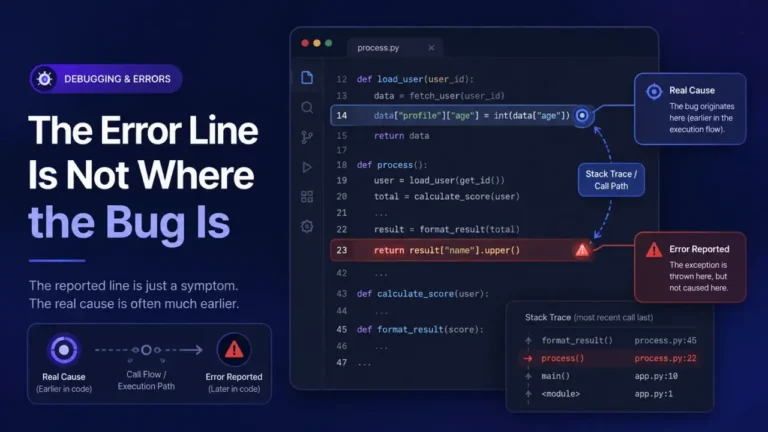
- The file and line tell you where execution was standing when it failed, which is not the same as where the mistake was made.
- The trace, when present, tells you how the request got there, most recent call first. It is the most useful part of the entry and the part people skip.
An assistant will read the entry for you and name a culprit with total confidence, which is why the habit of trusting nothing an AI assistant tells you until you have checked it belongs here too. It is good at explaining what a message means. It has no way of knowing which of your plugins hooked what.
Cutting a large log down to the entries that matter
A log left running on a busy site is mostly the same few lines repeated thousands of times. Triage by shape before you read a word of it.
- Work from the bottom. Entries are appended, so the end of the file is the present.
- Separate the repeaters from the one-offs. A message on almost every request is usually a notice or deprecation that has been noisy for months. It is real, it is worth fixing, and it is almost never what broke this morning. A message that appears once, or clustered around one timestamp, is the interesting one.
- Match the timestamp to the event. Reproduce the failure yourself, note the minute, and read only that minute. This is the fastest way to shrink a large file to a readable one.
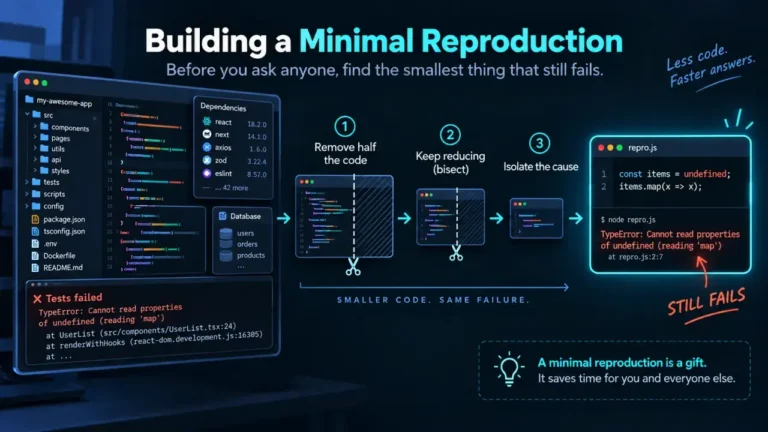
- Clear the file, then reproduce once. Move the old log aside rather than deleting it, in case you need it back. What you are left with is the smallest file that contains your actual failure.
When the path names core, the guilty code is somewhere else
This is where most attributions go wrong, and it is the part almost nothing written on this topic covers. The standard advice converges on one instruction: find the file path, see which plugin folder it names, and there is your culprit. That works right up until the path names a file in WordPress core, at which point the advice runs out.
Core files fail on behalf of other code constantly. WordPress ships a function whose entire job is to report this class of problem: _doing_it_wrong(), documented in the WordPress developer reference (read 2026-08-24) as marking "something as being incorrectly called", and which only triggers its notice when WP_DEBUG is true. When that notice reaches your log, the function named in it is a core function. The mistake belongs to whatever called it, at whatever moment it called it.
The clearest public example is the translation notice introduced in WordPress 6.7, tracked as WordPress Trac ticket #62175 (read 2026-08-24), where the logged notice names the core function _load_textdomain_just_in_time and reports that translation loading for a given text domain was triggered too early. Read naively, that entry accuses WordPress core. Read correctly, it says a plugin or theme asked for translated strings before the point in the load order where WordPress is prepared to supply them. The path is core. The guilty code is not.
So put a step between the path and the verdict:
- Path under
wp-content/plugins/orwp-content/themes/: the entry names code owned by that plugin or theme. A strong attribution, though not final, since that code may have been handed bad input by something else. - Path under
wp-includes/orwp-admin/: treat it as core reporting on somebody else's behalf. Go to the trace and find the first frame insidewp-content. That frame is your first real suspect. - No trace at all: the entry tells you what failed but not who asked. Reproduce it and capture one rather than guessing.
- A function or method that exists nowhere: you may be looking at invented code rather than broken code, which is a different investigation and one that checking the API surface before you trust the call settles faster than rereading the log.
Naming the code without accusing the wrong plugin
Attribution is a claim and it should survive being questioned. Before you name anything, get three things straight: which file, which function, and at whose request. The entry gives you the first. The trace gives you the second and third. With only the first, you have a location, not a cause. Write the entry down verbatim before you change anything, so you can tell later whether the log went quiet or you simply stopped looking.
One caution about the log's contents. Debug logs capture whatever the failing code was holding, and code that talks to an API is often holding a token when it fails. Read a log for credentials before you paste it into a ticket, a forum post, or an assistant's prompt window, for the same reason you would keep keys and .env values out of anything an assistant can see. A leaked key in a support thread outlives the bug by years. Once you have a fix, run the same checks you would run on any change you did not write yourself, which is what a pre-merge checklist is for.
Where to stop
Do not edit WordPress core. If the fix looks like a change to a file under wp-includes or wp-admin, it is not the fix. The next update overwrites it and you now own a site that breaks on a schedule. The change belongs in a child theme, in a small plugin of your own, or in a patch reported to whoever maintains the code.
What to do about a misbehaving plugin is a site decision, not a debugging one. Whether to disable it, replace it, hold an update, or restore from a backup depends on what the site is for and who depends on it, and the log answers none of that. Take the name of the guilty code and the entry that proves it, and hand both to whoever owns that decision, or to a developer if the fix belongs in code.
FAQ
My debug.log is empty even though the site is clearly erroring. Why? Either logging is not actually on, or the file cannot be written where WordPress expects to write it, or the failure is not a PHP error at all. A browser-side JavaScript error, a server failure before PHP runs, or a database connection problem may never produce a PHP log entry. Check the browser console and the server's own error log as well.
Does an error in the log mean the plugin named in the path is broken? Not by itself. The path names where execution failed. Plugins fail on data handed to them by other plugins, by a theme, by a stale option in the database, or by a PHP version change. Use the trace to find who called the failing code before you attribute fault.
Should I leave WP_DEBUG_LOG on all the time? The WordPress documentation recommends against using the debug tools on live sites at all and reserves them for local and staging installs. If you enable logging on production to catch something specific, treat it as temporary, and make sure the file is not publicly reachable while it exists.
What is the difference between the debug log and my host's PHP error log?
debug.log is written because WordPress asked PHP to write it there, and it contains what WordPress's debug constants let through. The server's error log is written by the host's PHP configuration and can capture failures from before WordPress loads. When the WordPress log is silent, the server log is the next place to look.