

To log WordPress errors to a file without ever displaying them to visitors, set three constants in wp-config.php, above the line that reads /* That's all, stop editing! */: WP_DEBUG to true, WP_DEBUG_LOG to true, and, critically, WP_DEBUG_DISPLAY to false. Back up wp-config.php before editing it, and make this change on staging first if you have one: a mistake in this file can take the whole site down, the same file that fixes this problem is also the one place a typo produces the exact white-screen failure this configuration is meant to help you diagnose. This article covers configuring logging correctly and permanently; if the site is currently white-screening and you need to find an error right now, that is a different job from this one: it is a diagnostic sequence run against a site that is already down, not a logging configuration you set up in advance.
The exact configuration
define( 'WP_DEBUG', true );
define( 'WP_DEBUG_LOG', true );
define( 'WP_DEBUG_DISPLAY', false );
@ini_set( 'display_errors', 0 );
Per the WordPress Developer Documentation’s Advanced Administration Handbook, this combination is the documented way to capture PHP notices, warnings and fatal errors to wp-content/debug.log while keeping the site’s actual output completely clean, no error text, no stack traces, nothing visible to a visitor loading the page. WP_DEBUG_DISPLAY must be false on a production site so errors do not leak to visitors, and leaving debug output visible on a live site exposes internal file paths and other implementation detail that has no business being public. The @ini_set('display_errors', 0) line is a belt-and-suspenders addition: some hosting environments have display_errors enabled at the server’s PHP configuration level, outside WordPress’s control, and this line suppresses that too, so a host-level default cannot override the WP_DEBUG_DISPLAY setting above it.
What each constant actually controls
| Constant | What it does | Production value |
|---|---|---|
WP_DEBUG | The master switch. Without it set true, WP_DEBUG_LOG and WP_DEBUG_DISPLAY have nothing to act on. | true, but only while actively diagnosing |
WP_DEBUG_LOG | When true, writes errors to wp-content/debug.log instead of, or in addition to, wherever they would otherwise go. | true, so nothing is lost |
WP_DEBUG_DISPLAY | Controls whether PHP errors are printed into the page output itself, where a visitor would see them. | false, always, on a live site |
The common mistake is setting WP_DEBUG to true alone and stopping there, which on many configurations also displays errors by default, since WP_DEBUG_DISPLAY defaults to following WP_DEBUG‘s own value unless explicitly overridden. Always set WP_DEBUG_DISPLAY to false explicitly, as its own line, rather than relying on WordPress’s default behavior.
Where debug.log lives, and why that alone is a real risk
wp-content/debug.log is a plain text file inside the standard web root, and on most default server configurations, that means it is directly reachable by URL: https://yoursite.com/wp-content/debug.log. A log file that is capturing exactly the kind of internal detail, file paths, PHP notices, sometimes variable values, that WP_DEBUG_DISPLAY: false is meant to keep away from visitors does no good if the file itself sits at a guessable, publicly loadable URL. Search engines and automated scanners routinely probe for exactly this file, since it is a well-known WordPress default location. Turning display off protects against errors appearing in the page; it does not, by itself, protect the log file from being fetched directly.
Block it explicitly. For an Apache server, add to .htaccess in the site root, or inside wp-content/:
<Files "debug.log">
    Require all denied
</Files>
For Nginx, add inside the relevant server block:
location = /wp-content/debug.log {
    deny all;
}
If the host or a security plugin already blocks direct access to dotfiles or log extensions site-wide, confirm it specifically covers debug.log rather than assuming a general rule catches it, since some default rules only block .php execution, not read access to .log files.
Keeping the log itself manageable and useful
A site with WP_DEBUG_LOG left on indefinitely accumulates a debug.log file that can grow to several gigabytes on a busy or noisy site, which slows down opening it and can, in rare cases, fill available disk space. Two practical habits:
- Treat
WP_DEBUGas diagnostic, not permanent, on most sites. Turn it on to capture a specific problem, review the log, then turnWP_DEBUGback tofalseonce done, rather than leaving verbose logging running indefinitely on a stable production site. - If ongoing logging is genuinely needed (an actively developed site, frequent plugin updates, a team that wants a running record), rotate or periodically clear
debug.lograther than letting it grow unbounded, and confirm the.htaccessor Nginx block above is in place before leaving it running long-term.
Reading what you find in the log
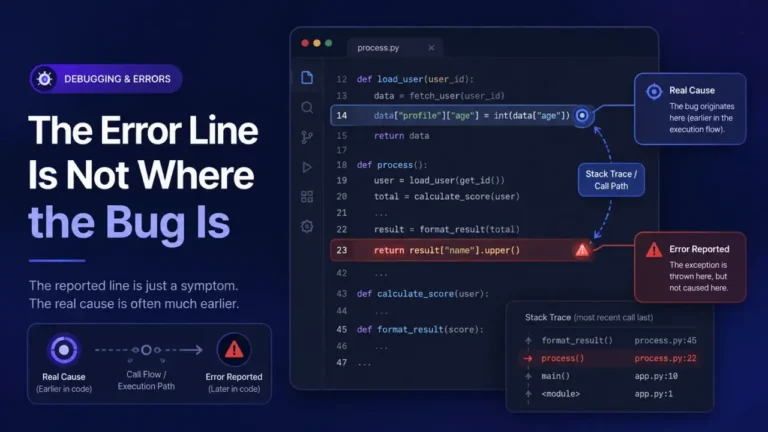
Once errors are being captured safely, Reading a Stack Trace You Did Not Write covers how to read the file, path and line-number information a debug.log entry contains and find the actual line responsible, rather than the symptom line. Deprecation notices specifically, common after a PHP version upgrade, are covered for one frequent example in PHP 8.4: Implicitly Nullable Parameter Is Deprecated, which is exactly the kind of entry this logging setup is designed to surface before it becomes a fatal error on a future PHP version.
FAQ
Is it safe to leave WP_DEBUG_LOG on permanently on a production site?
It is safe specifically with respect to visitors, since WP_DEBUG_DISPLAY: false keeps errors out of the page. It is not risk-free in general: the log file itself must be blocked from public access (above), and an unbounded log can grow large over time. Many sites turn it on to diagnose a specific issue and back off once resolved, rather than running it indefinitely.
Does WP_DEBUG_LOG slow the site down? The performance cost of writing log entries is minor under normal conditions. A site generating a very high volume of notices or warnings on every request (often a sign of an actual plugin or theme problem worth fixing) will feel more of a write cost than a clean site logging occasional entries.
Can I set a custom path for debug.log instead of the default location?
Yes, since WordPress 5.1, WP_DEBUG_LOG accepts a file path string instead of just true: define('WP_DEBUG_LOG', '/absolute/path/outside/webroot/debug.log'). Placing it outside the public web root entirely, if server access and permissions allow it, removes the “reachable by URL” risk above without needing an .htaccess or Nginx rule at all.
What is the difference between this and a plugin like Query Monitor?
WP_DEBUG_LOG captures PHP-level errors, notices and warnings to a file, quietly, regardless of who is viewing the site. Query Monitor and similar debugging plugins add an on-screen panel visible to logged-in administrators with elevated permissions, showing queries, hooks and errors live, but that panel is not something a plugin should ever expose to a logged-out visitor either; the two tools solve overlapping but different parts of the same problem and are commonly used together.
I set WP_DEBUG_DISPLAY to false but I still see errors on the page. Why?
Confirm the constant is not defined twice in wp-config.php (a second, later define('WP_DEBUG_DISPLAY', true) further down the file wins), and confirm the server’s own display_errors PHP setting is not overriding WordPress, which is exactly what the @ini_set('display_errors', 0) line in the configuration above is there to force off regardless of the host’s default.


1 comment