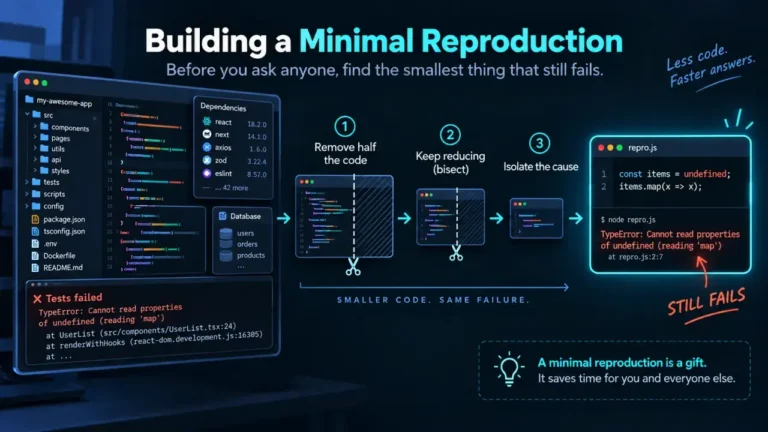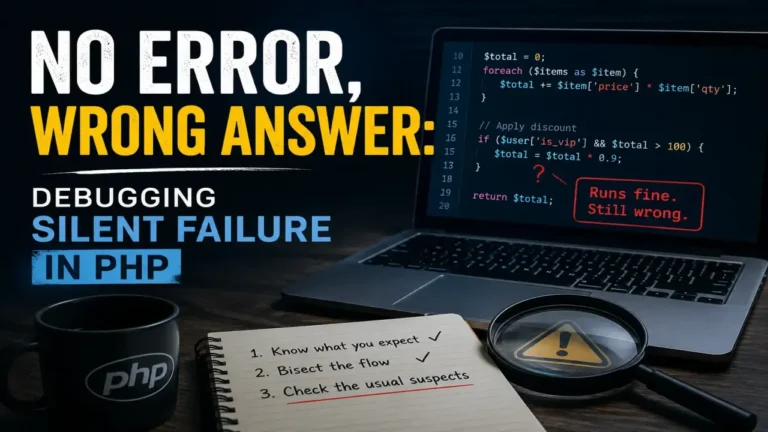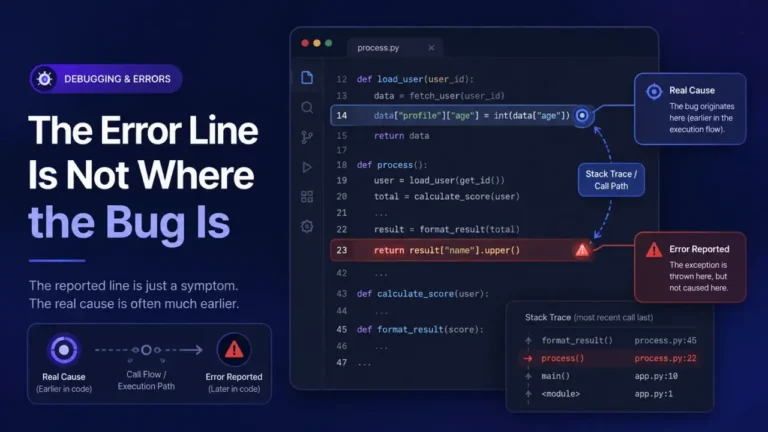

A blank white screen with no error text, no admin bar, nothing, means WordPress hit a fatal PHP error before it produced any output at all, and by default WordPress shows visitors nothing rather than a raw PHP error. Back up the site first, and do this on staging if you have one: the fastest way to see the actual error is to check the log files that already exist before you turn anything on, because enabling debug display, even temporarily, on a production site risks showing file paths and other details to visitors while you are working. This article is about finding what broke and where, ranked by how often each cause is the real one; turning logging on correctly and permanently, without ever exposing errors to visitors, is covered separately in Turning On WP_DEBUG_LOG Without Showing Errors to Visitors.
What “white screen of death” actually means
WordPress, like any PHP application, only produces output once it finishes running the request without hitting a fatal error. A fatal error, a call to an undefined function, a parse error in a file, a plugin conflict, or PHP running out of memory, stops execution before anything is sent to the browser. With display_errors off (the normal, correct state on production, and the sensible default), the result is a blank page instead of a visible error message. The error genuinely happened, it is just not shown to you by default, which is correct for a public site and unhelpful for you as the person trying to fix it.
Step 1: check the log files that already exist, before changing any settings
Most hosts log PHP errors somewhere on the server regardless of whether WP_DEBUG is turned on in WordPress itself, since that is a server-level PHP setting, separate from WordPress’s own debug constants. Check these first, since they require no changes to a live site at all:
wp-content/debug.log, ifWP_DEBUG_LOGwas already enabled before this happened. Look at the last few entries, ordered by timestamp, not the whole file.- The host’s PHP error log, commonly
error_login the site’s root orpublic_htmldirectory, or accessible through the hosting control panel’s “Error Logs” or “PHP Errors” section. Managed WordPress hosts (Kinsta, WP Engine, and similar) generally expose this in their dashboard without needing file access at all. - The server’s own PHP error log path, if you have SSH or hosting-panel access, findable by checking
error_loginphp.inior asking your host directly.
If a log already contains a recent fatal error with a timestamp matching when the site went white, that single log line, naming a file and a line number, usually identifies the exact cause without needing to change any WordPress settings at all.
Step 2: if nothing is logged yet, add temporary debug logging, not display
If no log file exists yet, WordPress needs to be told to start writing one. WP_DEBUG_DISPLAY must stay false on a production site so errors do not leak to visitors while you are diagnosing this, and WP_DEBUG_LOG should be true so the error is captured to a file instead. In wp-config.php, above the line that says /* That's all, stop editing! */:
define( 'WP_DEBUG', true );
define( 'WP_DEBUG_LOG', true );
define( 'WP_DEBUG_DISPLAY', false );
This writes the error to wp-content/debug.log without showing anything to visitors. Access the site again to trigger the fatal error, then check that log file for the newest entry. Per the WordPress Developer Documentation’s Advanced Administration Handbook, leaving WP_DEBUG_DISPLAY enabled on a live site exposes internal file paths and other implementation details that should not be public, which is exactly what this configuration avoids. Once the error is captured, turn WP_DEBUG back off if this was a one-time diagnostic change rather than the site’s permanent logging setup; the permanent setup is covered in the companion article linked above.
The three common causes, ranked
1. A plugin conflict or a broken plugin update (most common)
A plugin that just updated, or two plugins that both hook the same function in an incompatible way, is the most frequent cause of a sudden white screen with no code changes on your end. This is especially likely if the site was fine yesterday and broke after an automatic update.
Fix, if you cannot reach wp-admin at all: connect via FTP/SFTP or the host’s file manager, navigate to wp-content/plugins/, and rename the suspected plugin’s folder (adding -disabled to the end, for instance). Renaming the folder deactivates it instantly without needing database access, since WordPress can no longer find the plugin’s main file. If the site recovers, that plugin was the cause; reactivate the others one at a time from wp-admin to confirm none of the rest are also implicated, and check the plugin’s own changelog or support page before reinstalling the same version.
2. A theme error, especially right after a theme or theme-editor change
A syntax error introduced through the built-in theme editor (Appearance > Theme File Editor), or a theme update that is incompatible with an active plugin, produces the same symptom, and is more likely if the last thing changed was a template file rather than a plugin.
Fix: via FTP/SFTP, rename the active theme’s folder in wp-content/themes/. WordPress falls back to a default theme (Twenty Twenty-Four or similar, if installed) automatically when it cannot find the active one, which restores the site to a working, if plain, state so you can confirm the theme was the cause.
3. PHP’s memory limit was exhausted
A resource-heavy plugin, a large import, or code with a memory leak can exceed the memory limit PHP is allowed to use for the request, which is a fatal error, not a warning. The debug log entry for this cause specifically says Allowed memory size of ... bytes exhausted, which is a distinct, identifiable error rather than a generic fatal error, and is covered in full, including how to tell whether raising the limit is the right fix or just delays the same crash, in PHP Fatal Error: Allowed Memory Size Exhausted.
Once you have an actual error message
Everything above is aimed at getting from “blank screen, no information” to “a specific PHP error naming a file and a line.” Once you have that line, Reading a Stack Trace You Did Not Write covers how to read it correctly, including the frequent case where the flagged line is not actually where the mistake was made. If the error names a null object method call specifically, Call to a Member Function on null is the dedicated walkthrough for that exact message.
FAQ
Is it safe to turn on WP_DEBUG_DISPLAY briefly, just to see the error faster?
Not on a live, publicly reachable site. Even a few minutes of visible PHP errors can expose file paths and configuration details to anyone who happens to load the page during that window. Use WP_DEBUG_LOG with WP_DEBUG_DISPLAY left false, per the configuration above, or do this on a staging copy of the site instead.
I do not have FTP or file access, only wp-admin, and I cannot log in. What now? If wp-admin is also white-screening, most hosts provide a file manager inside their hosting control panel that does not depend on the WordPress admin working at all. If no file access exists anywhere, that is a hosting-account-access problem to resolve with the host first, not a WordPress problem to solve from inside WordPress.
Should I restore from a backup instead of finding the error? If a very recent backup exists from before the problem started, restoring is faster and equally valid, especially under time pressure. Finding the actual cause first is worth it when no clean-enough backup exists, or when you want to understand what happened so it does not recur, since restoring alone does not explain why the site broke.
Does a white screen always mean a fatal PHP error? Almost always, yes, though a very similar-looking blank page can also result from a JavaScript error breaking a block-editor-heavy admin screen specifically, which is a different, narrower problem than a full-site fatal PHP error and shows up only inside wp-admin, not on the public site.
Why does WordPress show “There has been a critical error on this website” instead of a blank screen sometimes? WordPress 5.2 and later includes a fatal error handler that catches many (not all) fatal errors and shows that message plus an email notification to the site admin, instead of the older completely blank page. Both symptoms point at the same underlying cause, a fatal PHP error, and the same diagnostic steps above apply either way.